Free autoclicker for Windows
Clicks for you. Stops when you say.
Set a pace, pick a spot, press F6. Hexline Autoclicker stays pinned on top of your game in a small window and keeps clicking until you press F6 again.
Free. Windows 10 and 11, 64-bit. One portable file, nothing to install.
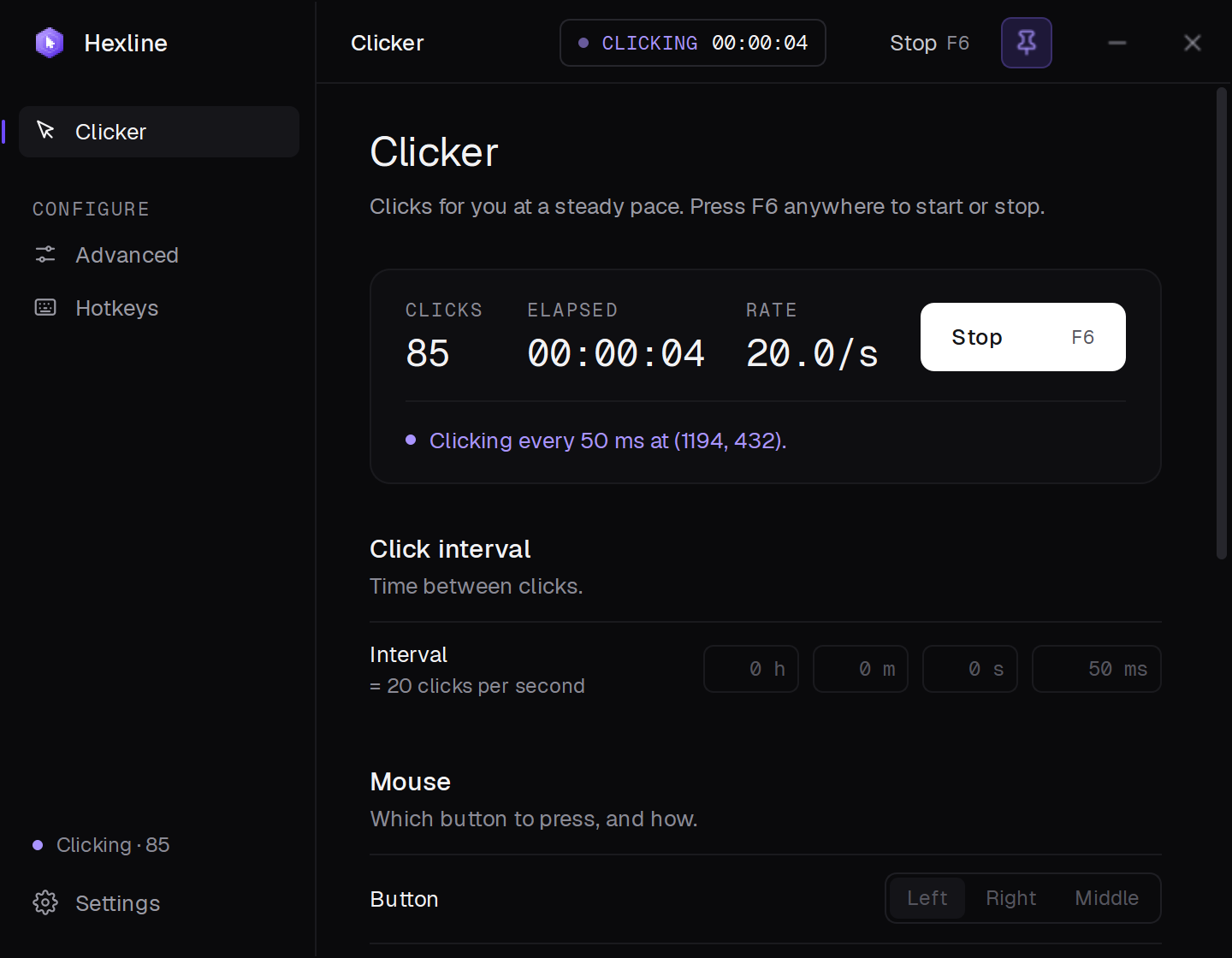
The real app, mid-run: 20 clicks a second, pinned on top.
Small enough to sit on top of your game.
The basics take a few seconds to set. The advanced options are there when a job needs them.
Any pace, down to a millisecond
Set the gap in hours, minutes, seconds and milliseconds. Pick the left, right or middle button, and single, double or triple clicks. While it runs you see the click count, the time and the real click rate.
Hotkeys that work in any game
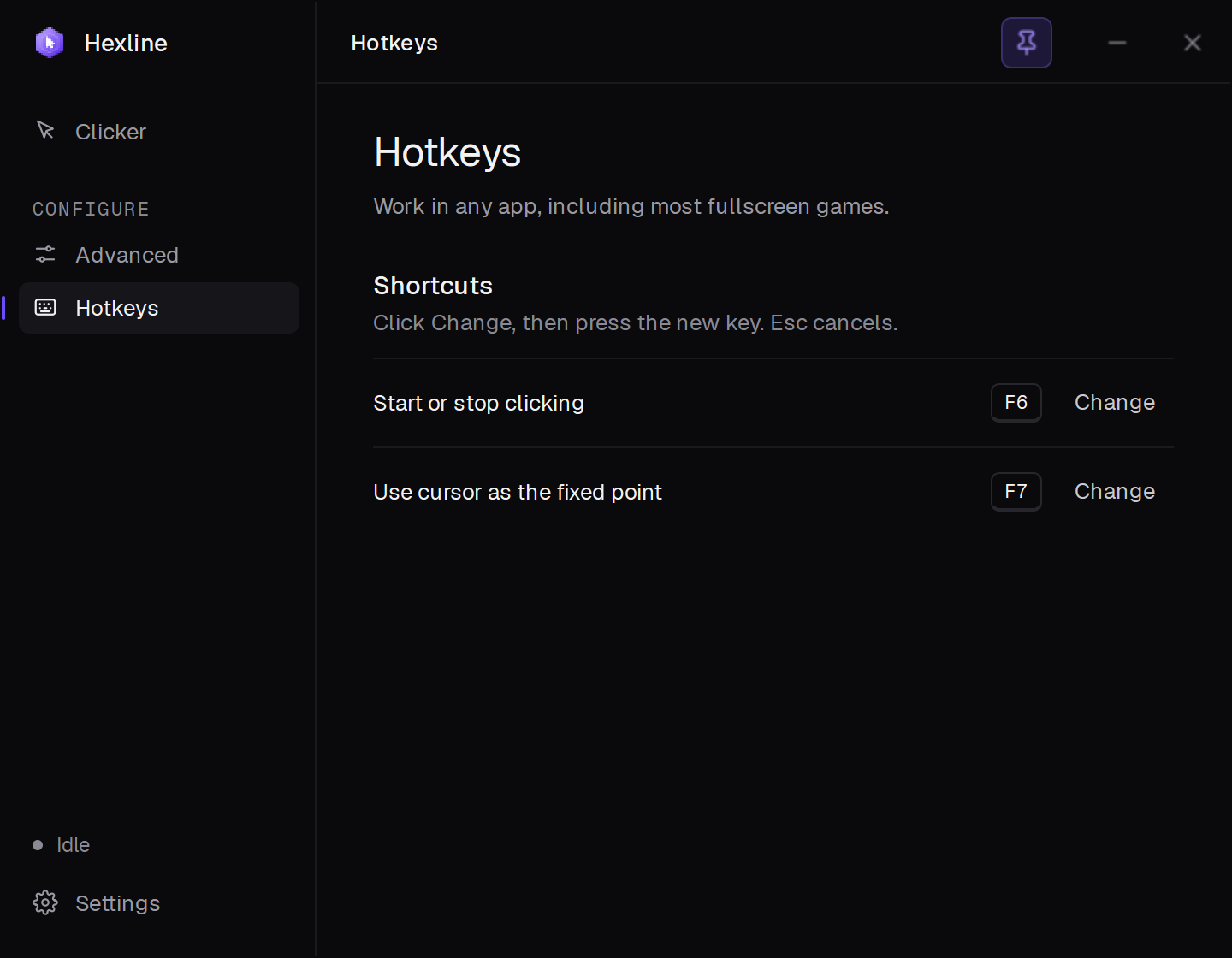
Start and stop without leaving your game. Both keys are global, work in most fullscreen games, and can be changed to any key or combination.
Click exactly where you point
Click where the cursor is, or at one fixed point. Press Pick and click anywhere on screen: that exact spot is saved, and the click itself never reaches the game underneath.
Pinned on top
A fixed, compact window with a pin in its title bar. Pin it and it stays in front of windowed and borderless games. Unpin it with one more click.
Less robotic when it matters
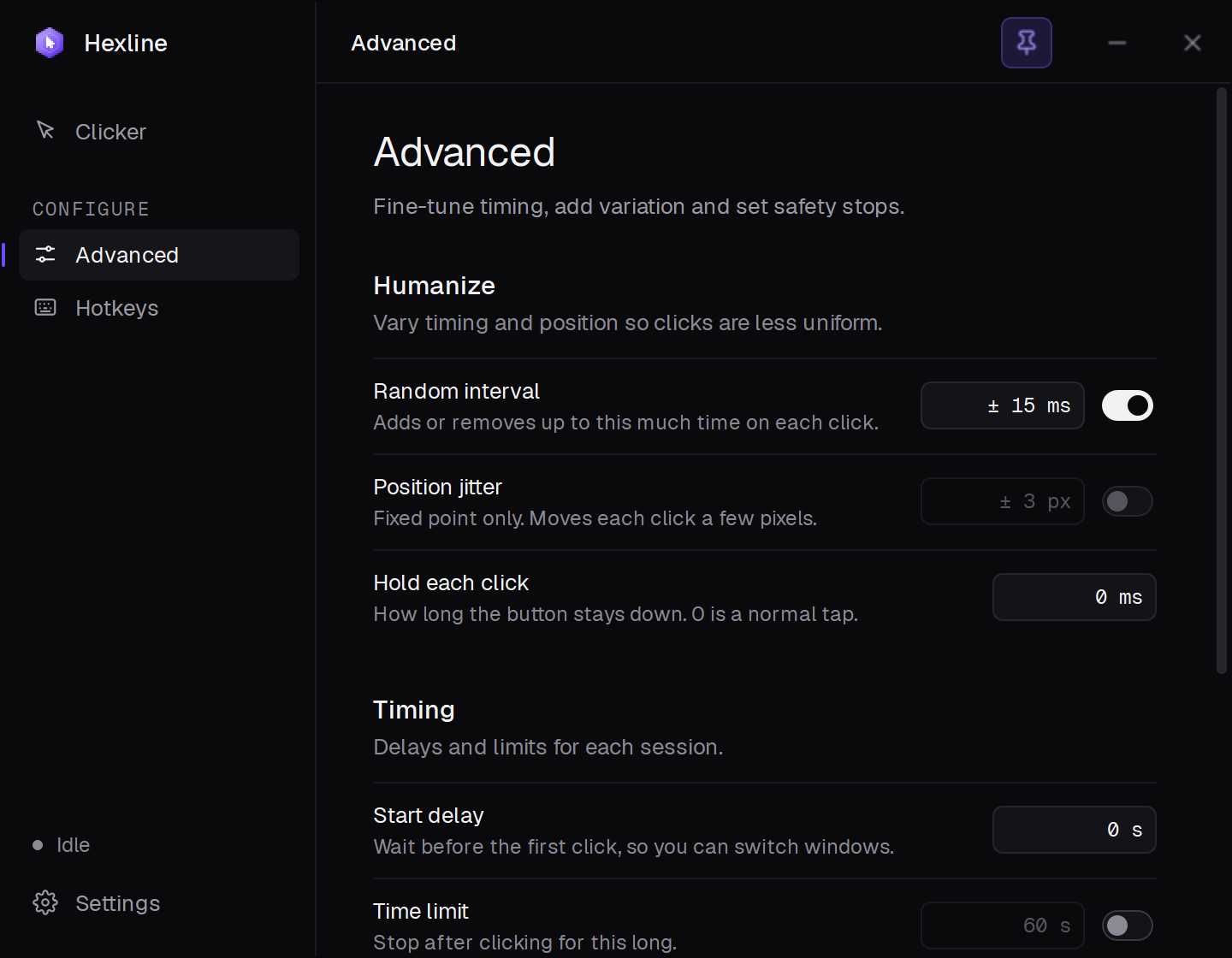
Add random variation to the gap between clicks, nudge a fixed point by a few pixels each time, and hold each click down for as long as you like.
Stops on its own
Give a run an end: a click count, a time limit, or a start delay so you can switch windows first. If a run gets away from you, throw the cursor into the top-left corner and it stops.
Everything on three pages.
Clicker for the basics, Advanced for timing and safety, Hotkeys for your keys. Settings save as you change them.
It only clicks your mouse.
Nothing more than a very patient finger. Some games’ anti-cheat still treats any automated input as cheating, so check a game’s rules before you use it there.
Hexline Autoclicker never
- Read or change game memoryIt sends ordinary mouse clicks through Windows’ SendInput, the same way your mouse does.
- Inject into or hook the gameIt runs in its own window and never loads anything into another app.
- Go onlineNo account, no telemetry, nothing in the background. Settings stay on your PC.
- Click its own buttonsThe window ignores the clicks it sends, so a run can never stop or restart itself by accident.

Download Hexline Autoclicker
One file. Double-click it and it opens, no installer. Press F6 and it starts clicking.
- Requirements
- Windows 10 or Windows 11, 64-bit. Nothing else to install.
- If Windows warns you
- The app isn’t code-signed yet, so SmartScreen may say it doesn’t recognise it. Choose More info, then Run anyway. The first start takes a few seconds while it unpacks.
- Where your settings go
- %APPDATA%\Hexline Autoclicker\settings.json. To remove the app completely, delete the exe and that folder.